HP FutureSmart - Change the default Service Access Code (PIN)
HP FutureSmart - Change the default Service Access Code (PIN)
Overview
HP LaserJet Enterprise and HP PageWide Enterprise printers ship from the
factory with a factory programmed Service Access Code (PIN).
This document provides instructions for an Administrator or Fleet Manager
to change the factory programmed Service Access Code (PIN) for one or more
HP LaserJet Enterprise or HP PageWide Enterprise printers. This can be
extremely useful if a Service Team is managing a fleet of several printer
models that they want to secure with a single, easy-to-remember PIN.
NOTE:The new PIN will replace the factory default Service Access Code (PIN).
This feature offers Administrators increased flexibility and enhanced
security including the following benefits:
-
The factory default Service Access Code PIN can be changed to a custom 8-digit numeric PIN.
-
One unique, easy-to-remember value for multiple HP FutureSmart printer models in a fleet. Normally, each printer model has its own Service Access Code (PIN).
-
Service Access Codes (PINs) are publicly listed in HP Service Manuals for ease of service. Setting a custom Service Access Code (PIN) makes the device more secure.
-
If a Service user is signed in with a PIN, the Service users are restricted only to the service menus and other applications are locked including Fax/Copy/Send and Retrieve from Device Memory.
This feature is available in FutureSmart version 3.2.3 and newer.
Restrictions
There are important Service Access Limitations to be aware of before
changing the factory default PIN:
-
Critical diagnostic tools, settings, and information used to service the printer are found the Service menus. Denying access to these menus can limit the serviceability of a printer.
-
Service technicians that use features within the service menu to diagnose and solve problems will not be able to access the service menu if the factory Service Access Code (PIN) is changed.
-
The Administrator or Fleet Manager will need to provide the customized Service Access Code (PIN) to the service technician before they can service a printer.
-
When Service users are signed in using a PIN, they will not have access to the following applications:
NOTE:
This restriction applies when the Factory Service Access Code (PIN) or the Administrator Configurable Service Access Code (PIN) is used.-
Fax
-
Copy
-
Send to Email
-
Send to Folder
-
Save to SharePoint
-
Send to Device Memory
-
Retrieve from Device Memory
-
Change the factory default PIN
First, make sure the printer is running FutureSmart firmware version 3.2.3
or newer, and then use one of the following methods to change the Service
Access Code (PIN):
-
Embedded Web Server (EWS)
-
Preboot menu
Embedded Web Server (EWS)
-
Open the Embedded Web Server (EWS).
-
Open a Web browser, and in the address field, type the printer IP address exactly as it appears on the Configuration Page, and then press Enter.
-
-
If an administrator password is set for the EWS, login using administrator credentials and select the Security tab.
-
If an Administrator password has not been set for the Embedded Web Server, first set the Local Administrator Password before changing the PIN.
-
Under Set the Service Access code, type the new 8-digit PIN number. Letters or special characters are not allowed.
-
Type the same new 8-digit PIN number in the Verify Access Code field.
-
Click Apply and click OK.
A confirmation screen displays and the Service Access Code PIN is
changed.
Control panel - Preboot Menu
-
Open the Preboot menu.
-
Touchscreen: Turn the printer Off and then On, and when 1/8 displays below the HP logo on the control panel, touch the logo.
-
Line display: Turn the printer Off and then On, and when the HP logo displays on the control panel and all three Ready, Data, and Attention LEDs illuminate solid, press.
-
-
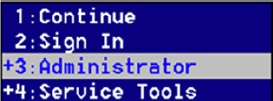
Select Administrator.
-
Select Change Svc PWD.

-
Type the new 8-digit PIN number. Letters or special characters are not allowed.
NOTE:
Depending on the model, use the 3 or 6 key (or the up and down arrows) to scroll through the numbers. Press OK or the 6 key to choose each number.
-
When prompted, type the same new PIN number again to confirm the password change.

Reset the Password
-
Open the Preboot menu.
-
Touchscreen: Turn the printer Off and then On, and when 1/8 displays below the HP logo on the control panel, touch the logo.
-
Line display: Turn the printer Off and then On, and when the HP logo displays on the control panel and all three Ready, Data, and Attention LEDs illuminate solid, press
 .
.
-
-
Select Administrator.
-
Select Reset Svc PWD.
-
Type the new 8-digit PIN number. Letters or special characters are not allowed.
NOTE:
Depending on the model, use the 3 or 6 key (or the up and down arrows) to scroll through the numbers. Press OK or the 6 key to choose each number.
-
When prompted, type the same new PIN number again to confirm the password change.
https://support.hp.com/
Comments
Post a Comment