HP LaserJet Enterprise, HP OfficeJet Enterprise, HP PageWide Enterprise - Install the HP Proximity card reader, X3D03A
HP LaserJet Enterprise, HP OfficeJet Enterprise, HP PageWide Enterprise - Install the HP Proximity card reader, X3D03A
Introduction
The HP Universal USB Proximity Card Reader is intended for use with HP
JetAdvantage Solutions.
This document provides instructions on how to install the card reader on
an HP LaserJet Enterprise, HP OfficeJet Enterprise, or an HP PageWide
Enterprise printer or Multifunction printer (MFP).
Requirements for the HP Proximity Card Reader
Before you install the card reader, make sure to preview the following
requirements:
-
HP Universal USB Proximity Card Reader Part Number: X3D03ATo purchase an HP Proximity Card Reader, contact an authorized HP reseller.
-
List of supported proximity card types:
-
HID Prox (125k Hz)
-
MiFare 14443A and 15693 (13.56 MHz)
-
HID iCLASS (13.56 MHz)
-
Card Serial Number (CSN) (13.56 MHz)
-
-
Required hardware parts for the HP Proximity Card Reader
-
Small flat-blade screwdriver to remove the HIP cover for some printer models.
Install the card reader
Use one of the following methods to installl the HP Proximity card reader
on your printer:
-
Method one: Install the card reader in the Hardware Integration Pocket (HIP)
-
Method two: Install the card reader using an external USB port
Method one: Install the card reader in the Hardware Integration Pocket (HIP)
If the printer has a Hardware Integration Pocket (HIP), follow these
steps to install the card reader:
NOTE:If the printer does not have a HIP, or if the HIP is already in use with another accessory, see Method two.
-
Press the power button to turn on the printer.
-
Open the flatbed cover.
-
Locate the HIP on the printer or MFP.Figure : Location of HIP

-
Remove the HIP cover by using a thin, flat-blade screwdriver along either the short edge of the HIP cover to gently pry the cover off. Set the cover aside.
-
Locate the USB port inside the HIP.Figure : Location of the USB connection

-
Select the appropriate HIP cover and USB cable connector to match the printer.
-
Depending on the type of the HIP cover, attach the card reader or HIP cover into the HIP.
-
Card reader that does not require a HIP cover:
-
Connect the 4-pin mini USB cable connector to the back of the card reader.Figure : 4-pin mini USB cable connector to the back of the card reader
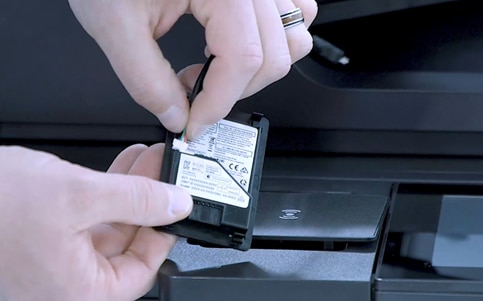
-
Connect the USB end of the mini USB cable connector to the USB port inside the HIP.Figure : Connection of the USB port inside the HIP

NOTE:
A red LED light illuminates from the card reader indicating that the card reader is recognized. -
Insert the card reader into the HIP.Figure : Proximity card reader inserted to the HIP

-
-
Card reader that requires a HIP cover:
-
Connect the 4-pin mini USB cable connector to the back of the card reader.Figure : 4-pin mini USB cable connector to the back of the card reader
-
Align the card reader to the clips located on the underside of the HIP cover, and make sure that the card reader is firmly attached to the HIP cover.Figure : Clips in the HIP cover to connect the card reader

-
Connect the USB end of the mini USB cable connector to the USB port inside the HIP.Figure : Connection of the USB port inside the HIP

-
Insert the card reader into the HIP.
-
-
-
Gently press down the card reader or HIP cover to ensure that it snaps into the HIP.
NOTE:
A red LED light illuminates from the card reader indicating that the card reader is recognized.A "USB Error" will display in the control panel of the printer until a solution is installed.Figure : USB Error displays on the control panel of the printer
Method two: Install the card reader using an external USB port
If the printer does not have a Hardware Integration Pocket (HIP),
follow these steps to install the card reader using the external USB
port available on the printer:
-
Press the power button to turn on the printer.
-
Connect the 4-pin USB cable to the back of the card reader.
-
Affix the USB cable connector to the slot of the external card reader adapter cover, make sure that the 4-pin connector is inside the cable adapter, and then snap the card reader and the external cable adapter cover.Figure : Pass the cable guide to the external card reader adapter

-
Connect the USB part of the USB cable to an available USB port located on the back of the printer.
NOTE:
A red LED light illuminates from the card reader indicating that the card reader is recognized.Figure : USB cable connected to the USB port of the printer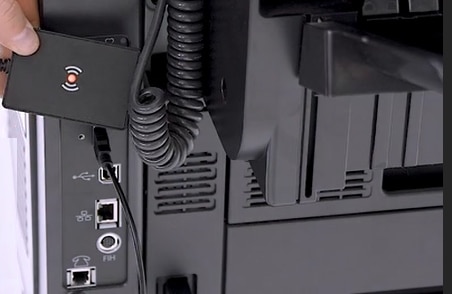
-
Position the card reader so that its cable does not interfere with opening any doors on the printer.
-
After the location has been identified, mount the card reader adapter using the provided double-sided adhesive velcro strip.
NOTE:
A "USB Error" will display in the control panel of the printer until a solution is installed.Figure : Mount the card reader with the adhesive strip
NOTE:The card reader will not be “Active” or “Ready to use” with HP Access Control until an Agent file has been installed on the printer.
https://support.hp.com/
Comments
Post a Comment